How to Remove a Virus From a Windows Laptop or PC, Step by Step
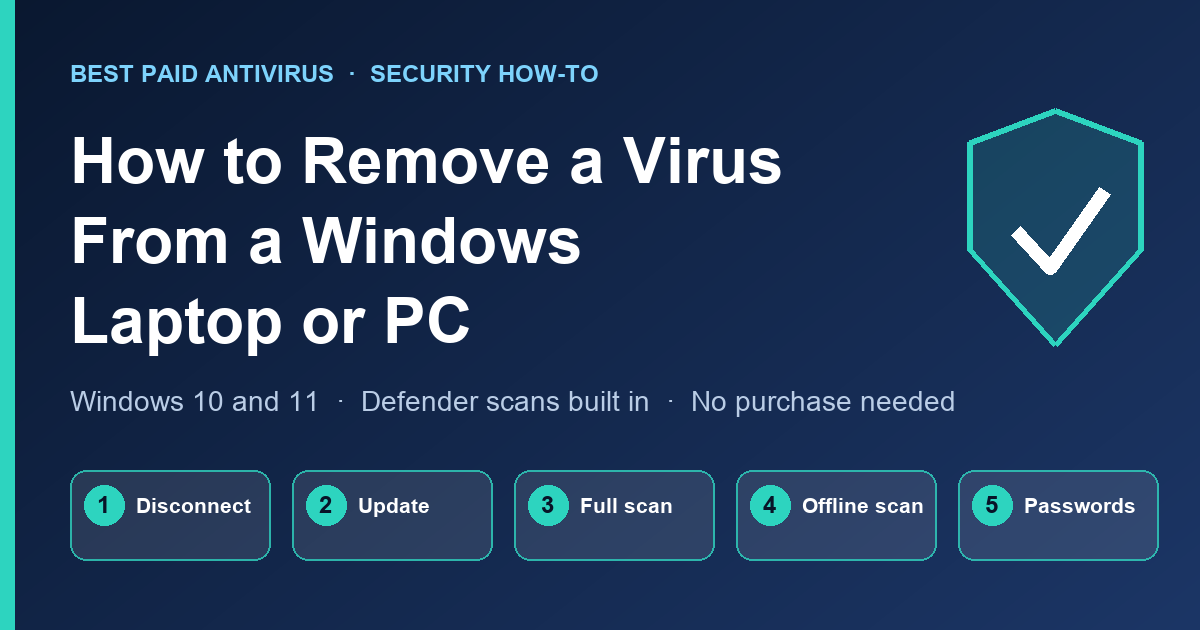
To remove a virus from a Windows laptop or PC, disconnect it from the network, update Microsoft Defender, run a full scan, then run a Microsoft Defender Offline scan, uninstall anything you do not recognise, and change your important passwords from a different, clean device. If the problem keeps coming back, back up your files and reinstall Windows. Most "virus" problems are fixed by the first three steps, and many are scam pop-ups rather than real infections.
Short answer
- Do not trust a pop-up that tells you to call a number. That is a tech-support scam, not a scan result. Our guide to the fake virus warning pop-up shows how to close it safely.
- Use the tools already on the PC. Microsoft Defender Antivirus runs inside the Windows Security app on Windows 10 and 11, and it includes a full scan and an offline scan.
- Clean up and then change passwords. A scan is only half the job if a password stealer was running.
- Reinstalling Windows is the reliable last resort. Microsoft recommends installation media if you suspect malware, and it removes everything on the device.
Is it really a virus? Check the symptoms first
Microsoft lists the usual signs of malware: the device suddenly runs much slower, battery life drops sharply, data usage jumps without explanation, you see unexpected ads or pop-ups, or your browser redirects you to sites you did not choose. Several of those can also be caused by a full disk, a failing drive or a bad browser extension, so treat them as a reason to scan, not as proof.
| What you see | Likely cause | First move |
|---|---|---|
| Full-screen alert with a phone number | Scam page, not a scan | Close the browser, do not call, then run a real Defender scan |
| Ads or pop-ups on every site | Browser extension or notification permission | Remove unknown extensions and block site notifications |
| Home page or search engine keeps changing | Browser hijacker or unwanted program | Full scan, then uninstall unknown programs |
| Fan loud, PC slow when idle | Hidden process, cryptominer or just updates | Check Task Manager, then run a full scan |
| Files renamed or a ransom note | Ransomware | Disconnect, do not pay yet, read our ransomware guide |
Step 1: Disconnect and protect your files
Turn off Wi-Fi or unplug the Ethernet cable. This limits what the malware can send out or download. If you need to save documents, copy only documents and photos to an external drive, not programs or installers, and scan that drive before you plug it into another computer. Keep a note of anything you typed on the PC in the last few days, such as banking or work logins, because you will change those later.
Step 2: Update Windows and Defender
Reconnect briefly (or use a trusted network) so the scanner has current threat definitions. Open Settings, then Windows Update, and install what is offered. In Windows Security, open Virus & threat protection and check for protection updates. Scanners find known threats using definition updates, so an out-of-date scanner can miss newer malware. If you have a third-party antivirus installed, open it and update it instead, because Defender may be in passive mode.
Step 3: Run a full scan
- Open Windows Security from the Start menu.
- Choose Virus & threat protection, then Scan options.
- Select Full scan and click Scan now. It can take an hour or more on a large drive, so leave the PC plugged in.
- When it finishes, follow the prompt to remove or quarantine anything it found, then restart.
Microsoft's help page says to choose a different scan type under Scan options when you want a deeper check, and to run Microsoft Defender Offline for the most complete scan. If you are not sure which tool to trust beyond Defender, see our comparison of free malware removal scanners.
Step 4: Run a Microsoft Defender Offline scan
Some malware, including rootkits and boot-sector infections, hides while Windows is running. Microsoft Defender Offline restarts the PC into a trusted environment outside the normal Windows kernel to find that kind of threat. Microsoft's documentation says the scan takes about 15 minutes and the PC restarts when it finishes.
- Save your work and close programs.
- In Windows Security, go to Virus & threat protection and Scan options.
- Pick Microsoft Defender Offline scan and click Scan now.
- Approve the prompt. Windows signs you out, restarts, scans and then loads normally.
Two catches from Microsoft's documentation: if BitLocker encrypts the system drive, suspend BitLocker first or you may be asked for your recovery key, and the offline scan needs the Windows Recovery Environment to be enabled or nothing happens and no error appears. Advanced users can start it with the PowerShell cmdlet Start-MpWDOScan from an administrator session.
Step 5: Get a second opinion if it keeps coming back
If Defender keeps finding the same item or you still see symptoms, download Microsoft Safety Scanner on a clean device if you can. Microsoft describes it as a portable tool that scans only when you start it, expires 10 days after download and does not replace your real-time antivirus. Download a fresh copy before each scan. A scanner from another vendor can also help, but only use well-known ones from the vendor's own site, and never an "optimizer" that a pop-up offered you.
Step 6: Clean up what the scan leaves behind
- Uninstall unknown programs. Open Settings, Apps, Installed apps (Apps & features on Windows 10), sort by install date and remove anything you do not recognise, especially from the day the problem began.
- Remove browser extensions you did not choose, and reset the home page and default search engine. Block notifications from sites you do not trust.
- Review startup apps. In Task Manager, open the Startup apps tab and disable items you do not know.
- Keep real-time protection on. If Windows Security shows it is off, turn it on, then restart and run another quick scan to confirm the PC is clean.
Step 7: Change passwords and watch your accounts
Using a different, clean phone or computer, change the passwords for email first, then banking, shopping and social accounts, and turn on two-step verification. If you typed card or bank details while the PC was infected, tell your bank. If personal information such as a Social Security number may be exposed, the FTC's IdentityTheft.gov gives a recovery plan, and our guide on reporting a scam to the FTC covers what to file.
When to reinstall Windows
Reinstall if scans keep finding the same threat, if you cannot trust the system after a ransomware or banking-trojan infection, or if Defender will not start. Microsoft's recovery guide lists Reset this PC as the most disruptive option and says that installing Windows with installation media removes everything on the device, and it recommends that approach if you suspect malware. Back up your files first, copy only documents and photos, and scan the backup before restoring it. After the reinstall, install updates before anything else.
If your PC still runs Windows 10, remember that Microsoft ended free security updates for it on October 14, 2025. An unpatched PC is easier to infect again, so plan an upgrade to Windows 11 or move to a supported device.
Do you need to buy antivirus after this?
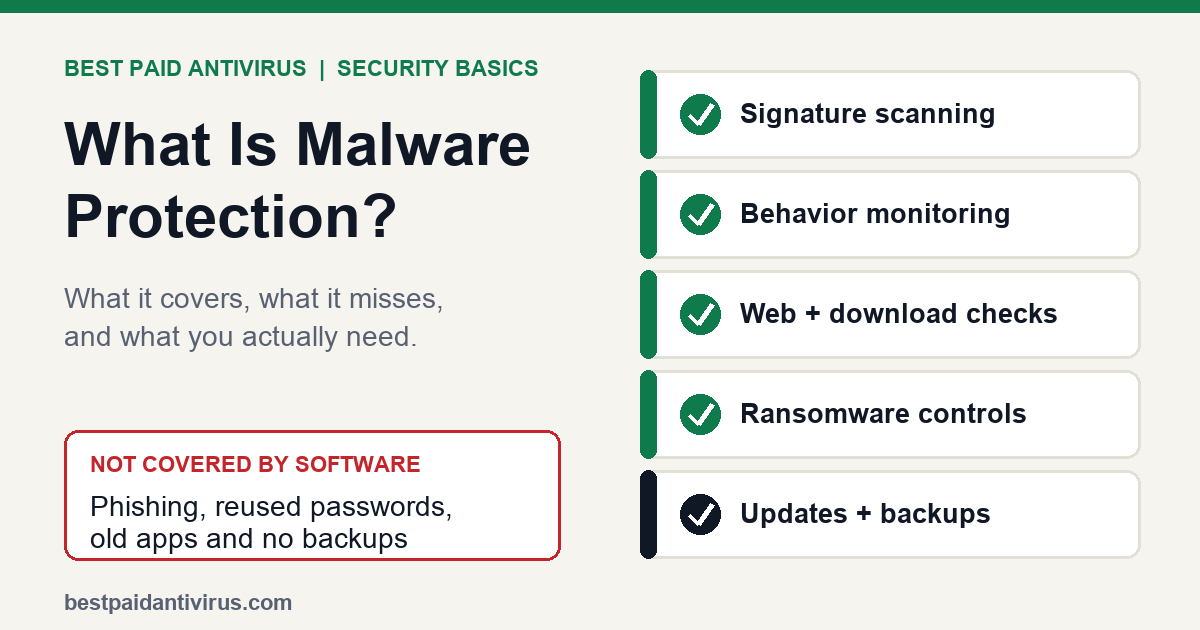
Not necessarily. In AV-TEST's August 2026 test of 15 home products on Windows 11, Microsoft Defender Antivirus scored 6 of 6 for protection. That does not mean paid suites are useless: they can add multi-device cover, identity monitoring, a VPN or a password manager. Read whether Windows Defender is enough, then compare options in our best antivirus for Windows 11 guide and the overview of what malware protection covers. If you do pay, check the renewal price before you buy, as our Norton renewal price guide explains.
The bottom line
The reliable order is: disconnect, update, full scan, Defender Offline scan, clean up, change passwords, and reinstall Windows only if the problem persists. Most people do not need to buy anything to get through it. What they do need is patience, a clean device for password changes, and the habit of closing scary pop-ups without calling the number.
Sources
- Microsoft Support: How to start a scan for viruses or malware in Microsoft Defender
- Microsoft Learn: Run and review the results of a Microsoft Defender Offline scan
- Microsoft Learn: Microsoft Safety Scanner download
- Microsoft Support: Recovery options in Windows
- Microsoft Support: Stay protected with the Windows Security app
- Microsoft: Windows 10 end of support
- AV-TEST: Test antivirus software for Windows 11 (August 2026)
- FTC: IdentityTheft.gov
Frequently Asked Questions
Can Windows Defender remove a virus on its own?
Often, yes. Run a full scan from Virus & threat protection, then a Microsoft Defender Offline scan if symptoms continue. Defender Offline restarts the PC into a trusted environment to find rootkits and other threats that hide while Windows is running. If a threat keeps returning, back up your files and reinstall Windows.
Should I disconnect from the internet if I think I have a virus?
Yes, disconnect first to limit what the malware can send or download. Reconnect only long enough to update Windows and your antivirus so it has current definitions, then run your scans. Use a different, clean device to change your passwords.
How do I know the virus is really gone?
A full scan and a Defender Offline scan that find nothing, no more pop-ups or redirects, normal speed and no unknown programs or browser extensions are good signs. Keep real-time protection on, restart, and run another quick scan a day later. If symptoms return, reinstall Windows.
Do I need to buy antivirus software to remove a virus?
No. Microsoft Defender Antivirus ships with Windows 10 and 11 and includes full and offline scans. In AV-TEST's August 2026 Windows 11 test of 15 home products it scored 6 of 6 for protection. Paid suites can add extras such as identity monitoring or multi-device cover.
Is it safe to use Safe Mode to remove malware?
Safe Mode starts Windows in a limited state with only essential drivers and services, which can make it easier to uninstall a stubborn program. To reach it, use Windows Recovery Environment: Troubleshoot, Advanced options, Startup Settings, Restart, then choose a Safe Mode option. You may need your BitLocker key.
Written by the Best Paid Antivirus editorial desk from published lab results, vendor documentation and official guidance. Spotted something out of date? Tell us. Some links may earn us a commission; see our affiliate disclosure.