Fake Virus Warning Pop-Up? How to Spot the Scam and Close It Safely
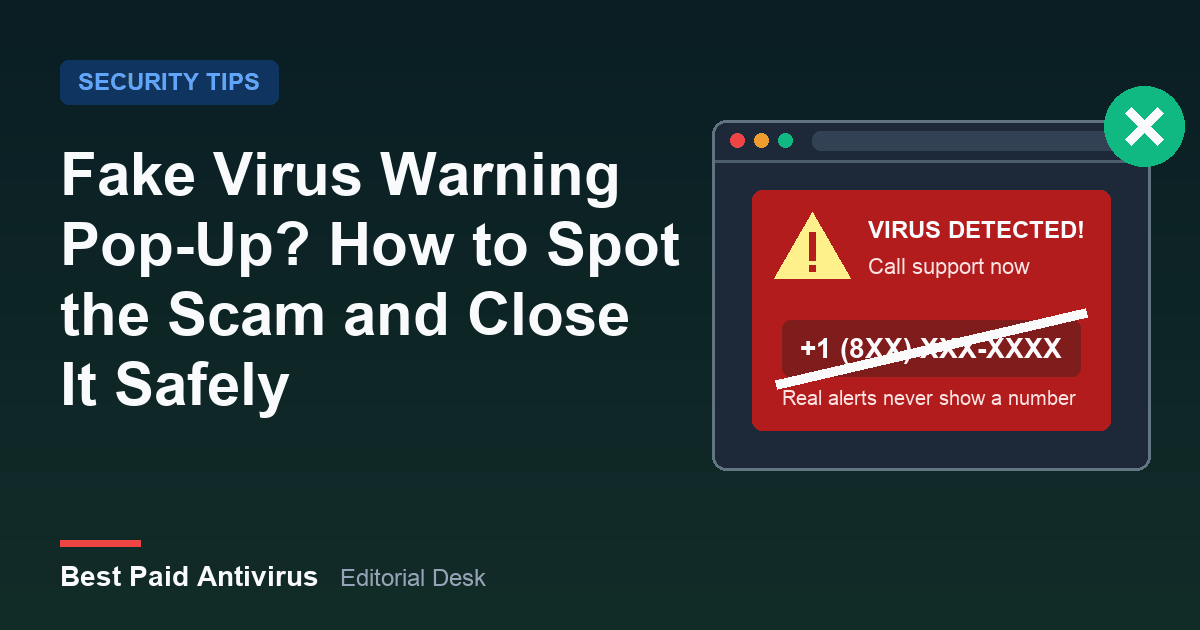
If a browser window suddenly says your computer is infected, shows a phone number, plays an alarm or claims to be from Microsoft, Apple, McAfee or Norton, treat it as fake. Real security warnings from Windows, macOS and antivirus apps never ask you to call a phone number. Do not call, do not click anything inside the warning, and close the browser. In most cases nothing has been installed yet: the real damage starts when you call, let someone connect to your computer, install what they suggest, or pay.
These warnings are a staple of tech support scams, and they are in the news again this week. Engadget published a guide to stopping fake virus pop-ups on Windows on October 20, and fake "McAfee" alerts and renewal notices keep circulating. Below is how to tell a fake warning from a real one, how to get rid of it safely, how to stop the ones that keep coming back, and exactly what to do if you have already called the number.
How to tell a fake virus warning from a real one
Fake warnings are designed to look urgent and official. Microsoft says scam pages may switch your browser to full screen, show pop-ups that will not go away, or even disable Task Manager, so the message looks like it is coming from Windows rather than a website. Look for these signs:
- It shows a phone number. This is the single most reliable test. Microsoft states that its error and warning messages never include a phone number, and the FTC says real security pop-ups will never ask you to call one.
- It appeared while you were browsing. A warning that pops up inside a web page, a new tab or a full-screen browser window comes from a website, not from your antivirus.
- It uses pressure. Countdown timers, alarm sounds, a robotic voice, "do not restart your computer" or "your files will be deleted in 5 minutes" are scare tactics.
- It names software you do not have. A "McAfee" or "Norton" scan result on a PC that runs neither is fake by definition. So is a "Windows Defender" warning on a Mac.
- It wants a download, a renewal or a payment. "Scan now", "Renew your subscription" and "Click Allow to remove the virus" are all routes to a sale, a malicious install or a scammer on the phone.
A genuine alert looks very different. On Windows, Microsoft Defender reports threats through the Windows Security app and its own notifications, names the file it found, and tells you it was quarantined or removed. Paid antivirus apps alert you from their own window or the system notification area, not from a web page. Apple's advice is simple: if a pop-up while you browse warns about viruses or security problems on your device, do not believe it.
What to do right now
- Do not call the number and do not click inside the pop-up. Even buttons labelled "Close", "Cancel" or "OK" on a scam page can trigger a download or a new window.
- Leave full screen. Press Esc. On Windows you can also press F11; on a Mac, press Control-Command-F.
- Close the tab or the whole browser. Use the X on the browser itself, or press Alt+F4 on Windows or Command-Q on a Mac.
- If the browser will not close, force it. On Windows press Ctrl+Shift+Esc to open Task Manager, select the browser and choose End task. On a Mac press Option-Command-Esc, select the browser and choose Force Quit. If even that is blocked, restart the computer.
- Do not restore the old tabs. When you reopen the browser and it offers to restore your previous session, decline, or close the scam tab straight away if it reloads.
- Run one real scan for peace of mind. On Windows open Windows Security, then Virus & threat protection, and run a full scan. Our guide to which malware removal tool to use explains when a Defender Offline scan or a second-opinion scanner is worth adding.
Warnings that keep coming back: check browser notifications
If "virus detected" or "your subscription has expired" messages keep sliding in from the corner of your screen, even when the browser is minimised, the cause is usually not a virus. At some point a website asked you to "click Allow to confirm you are not a robot" or "Allow to watch the video", and that click gave it permission to send browser notifications. The site now uses that permission to push fake security alerts.
Removing the permission stops them:
- Chrome: Settings, then Privacy and security, then Site settings, then Notifications. Under "Allowed to send notifications", remove any site you do not recognise.
- Microsoft Edge: Settings, then Cookies and site permissions, then Notifications, and remove unknown sites from the Allow list.
- Safari on Mac: Safari, then Settings, then Websites, then Notifications. Select unknown sites and choose Deny or Remove.
- Firefox: Settings, then Privacy & Security, scroll to Permissions, and open the Settings button next to Notifications.
While you are in the browser settings, open the extensions page and remove any extension you did not knowingly install. Google also notes that Chrome automatically blocks notifications from sites it finds intrusive or misleading, and its pop-up and redirect setting lets you block a specific site completely. If the alerts appear on an Android phone instead, follow our step-by-step guide to removing a virus from an Android phone, which covers notification spam and rogue apps.
The fake "McAfee" or "Norton" renewal alert
One of the most common versions right now is a pop-up or notification styled as a McAfee or Norton alert: "Your subscription expired today", "Your PC is infected with 5 viruses", with a big "Renew now" button. The FTC describes a related trick in which a message about a tech support subscription renewal asks you to call within 24 hours to dispute a charge. If you call, the scammers ask for remote access, steer you to a fake refund page, then claim they "refunded too much" and demand the difference back in gift cards, wire transfers or crypto.
If you really do have one of these products, check your subscription by opening the antivirus app itself, or by typing the company's address into the browser yourself. Never use a link or number from the pop-up. The FTC also suggests checking your card or bank statement: no charge for a tech support subscription means the message was a scam. If you are deciding whether a paid suite is worth it in the first place, our McAfee review and Norton vs McAfee comparison cover what each one actually includes.
If you already called, gave access or paid
Act quickly, and do not be embarrassed: these scams are run by professionals. Work through this list:
- End the session. Hang up and disconnect the computer from the internet (turn off Wi-Fi or unplug the network cable) if someone still has remote access.
- Remove the remote access software. Uninstall any remote control app they asked you to install, then run a full antivirus scan. Microsoft warns that scammers who get remote access often install malware, ransomware or other unwanted programs.
- Change your passwords from a different, clean device. Start with your email and your bank, then any account that shares the same password. The FTC advises changing every account where you reused a password you gave away. Turn on two-step verification wherever it is offered.
- Call your bank or card issuer. Use the number on the back of your card, not one the scammer gave you. Ask them to stop or reverse the payment. If you paid with a gift card, contact the company that issued the card as soon as possible.
- Watch for the second call. The FBI warns about a follow-up stage in which someone posing as your bank or a government agency says your accounts are compromised and asks you to move money to a "safe" account. No real bank or government agency will ever ask you to do that.
- Report it. In the US, report to the FTC at ReportFraud.ftc.gov and to the FBI's IC3. In India, use the National Cyber Crime Reporting Portal (cybercrime.gov.in) or call the 1930 helpline. In England, Wales and Northern Ireland, Report Fraud has replaced Action Fraud. You can also report fake Microsoft support to Microsoft.
If ransomware or encrypted files are part of the picture, our ransomware protection guide covers what to do next.
How to see fewer fake pop-ups in the first place
- Keep your browser and operating system updated. Most protection against scam pages is built into the browser and updates automatically.
- Use the scam protection you already have. Microsoft says Edge's Scareware blocker, which exits full screen, silences the audio and shows a warning when a page looks like a scam, is now on by default on most Windows and Mac devices. Chrome users can turn on Enhanced protection under Settings, then Privacy and security, then Security.
- Never click "Allow" on a notification prompt you did not expect. A real site does not need notifications to prove you are human or to play a video.
- Search carefully for support numbers. The FTC notes that scammers buy ads and push their own sites into search results for "tech support". Get support numbers from the company's own website or your product's box or receipt.
- Tell the people in your family one rule: a warning with a phone number on it is a scam. The FBI has warned that these schemes often target older adults, and one sentence they remember is worth more than any software.
A good antivirus helps by blocking known scam sites and catching anything malicious you download, and the free Microsoft Defender built into Windows handles this well for most people. Our guide on whether Windows Defender is enough explains when a paid suite adds something useful.
Frequently asked questions
Can a fake virus pop-up infect my computer on its own?
Usually not. Most scam pages are just web pages designed to frighten you into calling or downloading something. The risk comes from what you do next: calling the number, allowing remote access, installing a "cleaner" or entering card details. Closing the page and running a scan is normally enough.
Will Microsoft or Apple ever call me about a virus?
Treat any unexpected call like that as a scam. Microsoft says its warning messages never include a phone number and that it will never ask you to pay for support in gift cards or cryptocurrency. Apple says it will never ask you to log in to a website or to give your password, device passcode or two-factor code.
I have McAfee installed. Could the McAfee pop-up be real?
Real McAfee alerts come from the McAfee app on your device, not from a website. If the alert appeared inside the browser, came as a browser notification, or showed a phone number, it is fake. Open the McAfee app directly to check your status.
I clicked on the pop-up but did not call or pay. Am I safe?
Probably, but check. Close the browser, look for any new programs or browser extensions you did not install, remove unknown sites from your notification settings, and run a full scan. If something downloaded, do not open it; delete it and scan again.
Sources
- FTC: How to spot, avoid and report tech support scams
- Microsoft Support: Protect yourself from tech support scams
- Apple Support: Recognize and avoid social engineering schemes
- Google Chrome Help: Use notifications to get alerts
- Google Chrome Help: Block or allow pop-ups in Chrome
- Microsoft Edge: Scareware blocker
- Microsoft Edge Blog: Expanded Scareware blocker availability
- FBI IC3: "Phantom Hacker" scams target senior citizens
- Report Fraud (UK)
- Engadget: How to stop fake virus pop-ups on your Windows PC (October 20, 2026)