Is Google Password Manager Safe? When a Dedicated Password Manager Is Worth It
Yes, for most people Google Password Manager is safe enough, and it is far safer than reusing the same password across sites. Google encrypts what you save, checks it against known breaches, and supports passkeys. The real risks are not the vault itself but the Google Account that unlocks it, the computer it runs on, and a few missing features. Here is what Google actually says it does, where the gaps are, and when a dedicated password manager is worth paying for.
Short answer: who should use it
- Keep Google Password Manager if you live in Chrome and Android, you only share logins with family, and you protect your Google Account with 2-Step Verification or a passkey.
- Consider a dedicated manager if you share logins with colleagues or friends, switch between many browsers and phones, or want a vault that does not depend on one company's account.
- Do not go without one. The CISA guidance is blunt: long, random, unique passwords are the goal, and a password manager is the practical way to get there. Reusing one password is the real danger.
What Google Password Manager does
When you use Chrome, Google Password Manager saves your passwords. If you are signed in to Chrome, it saves them to your Google Account so you can use them across your devices and in some apps. If you are not signed in, Chrome stores them locally on that device. You can also manage saved passwords in any browser at passwords.google.com.
Google's Chrome help page lists the features that matter for security:
- Strong password suggestions when you create an account, saved automatically to your Google Account.
- Password Checkup, which reports passwords that are exposed in a data breach, weak, or reused on several accounts.
- Breach warnings when you sign in to a site, available under Standard protection (Safe Browsing must be on).
- Automated password change on compatible websites, through a "Change it for me" prompt.
- Passkeys as an alternative to passwords.
- Notes on a saved login, which Google says get the same protection as the password.
One setting is easy to miss. Google says biometric authentication before autofilling or revealing a password is off by default. On Windows you can turn on "Use Windows Hello when filling passwords"; on a Mac, "Use your screen lock when filling passwords". If anyone else ever touches your unlocked computer, this one switch matters.
How well is it protected?
Google describes two levels of encryption, and the difference is worth understanding.
Standard encryption. Your saved passwords are encrypted when they travel over a network and when they are stored at Google. The key that unlocks them is stored in your Google Account, and Google uses it to decrypt your passwords when you open them on your devices or run Password Checkup. Google's own analogy is a safety deposit box where the bank looks after the key: you trust Google to hold it.
On-device encryption. If you turn it on, your passwords and passkeys can only be unlocked with your Google password or your device's screen lock, and Google says no one besides you can access them. The trade-offs, again from Google: once it is set up it cannot be removed, and if you lose the key you can lose the passwords. Google also says that over time this protection will be set up for everyone, so check your own setting rather than assume. To enable it, go to passwords.google.com, open Settings and choose Set up under On-Device Encryption.
Password Checkup is built to avoid exposing you. Google says Chrome encrypts your username and password before comparing them with an encrypted list of known breached data, so Google never learns the credentials during that check.
Where the real risk is
1. The Google Account is the master key
Anyone who takes over your Google Account may reach the passwords synced to it. Protect it like a bank login: a unique password, 2-Step Verification, up-to-date recovery options, and ideally a passkey. Google says a passkey cannot be shared, copied or written down, which makes it more resistant to phishing. One caveat from Google: if your account has 2-Step Verification, a passkey bypasses the second step, because it already proves you hold the unlocked device. CISA's multifactor guidance says that even when a password is stolen, the second step stops the login.
2. Malware on your computer
This is where an antivirus matters, and it is the weakness that password-manager marketing rarely mentions. Google's Chrome security team has explained that on Windows, Chrome historically protected stored secrets with the operating system's Data Protection API, which does not protect against malicious applications running as the logged-in user. That is exactly what infostealer malware does. In Chrome 127 Google introduced App-Bound Encryption, starting with cookies, and said it intends to extend it to passwords, payment data and other tokens. Google also notes that malware running with elevated privileges can still bypass the protection, although doing so is more likely to trigger antivirus detection.
The practical lesson: no password manager, Google's or anyone else's, helps if the device is compromised. Keep Windows or macOS updated, avoid cracked software and fake "your PC is infected" pop-ups (our guide to the fake virus warning pop-up shows how to close them safely), and run reputable protection. If you are not sure whether you need more than the built-in tools, read whether Windows Defender is enough and whether you need antivirus in 2026.
3. Sharing and features
Google says you can only share a saved password with members of your family group. That is fine for a streaming account at home, and a problem for a team or a client login. Compare that with what you need before you decide.
4. Trust in one company
With standard encryption you rely on Google to hold the key, and your passwords sit inside the same account as your email and photos. That is a reasonable trade for many households, but it is a trade. NIST's digital identity guidelines, SP 800-63B, list "a vulnerability in an insufficiently secure password manager" among the ways a password can be copied, and tell agencies to evaluate managers carefully before recommending them. The same document says verifiers must allow password managers and autofill, and that managers have been shown to help people choose stronger passwords. The takeaway is balance: use one, and choose with care.
Google Password Manager vs a dedicated manager
| Question | Google Password Manager | What to check in a dedicated manager |
|---|---|---|
| Price | Free with a Google Account | Free tier limits and the renewal price after year one |
| Where it works best | Chrome and Android, with management at passwords.google.com | Whether autofill works in every browser and phone you actually use |
| Who holds the key | Google by default; you only with on-device encryption | Whether it offers zero-knowledge encryption and how recovery works |
| Sharing | Family group only | Sharing with non-family and team vaults |
| Breach checks | Password Checkup and breach warnings | Breach monitoring, which may be a paid feature |
| Passkeys | Supported | Whether it stores passkeys and exports them |
Dedicated managers worth comparing include Bitwarden, Proton Pass and NordPass, each of which PCMag reviewed in October 2026, and security suites often bundle one. Before paying for a bundled manager inside a suite, check its limits in our internet security suite comparison and watch the renewal price, which is the common trap in paid plans.
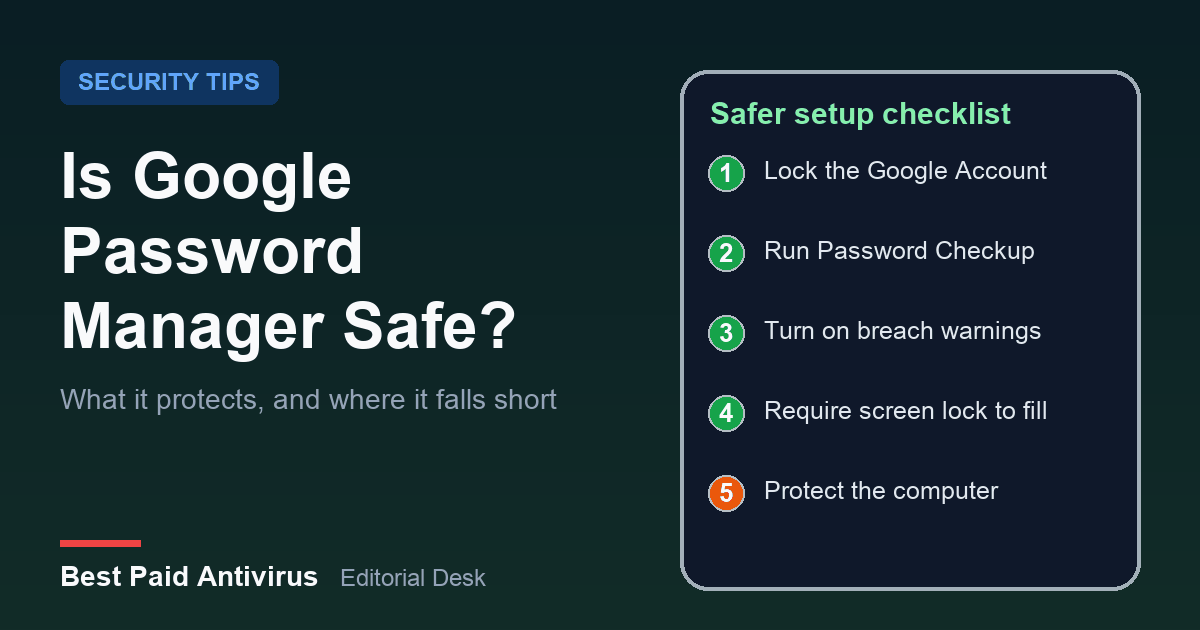
A 10-minute setup that makes Google Password Manager safer
- Lock the Google Account first. Turn on 2-Step Verification, add a passkey, and make sure your recovery phone and email are current.
- Run Password Checkup. In Chrome, open More, then Passwords and autofill, then Google Password Manager, then Checkup. Change anything exposed, weak or reused, starting with email, banking and your Google Account.
- Turn on breach warnings. In Chrome settings under Privacy and security, then Security, enable the warning for exposed passwords.
- Require your screen lock before autofill. Enable Windows Hello or your Mac screen lock in Google Password Manager settings.
- Decide about on-device encryption. If you want only you to hold the key, set it up, and keep your recovery options current first.
- Make new passwords long and random. CISA suggests at least 16 characters, or a passphrase of four to seven unrelated words, unique for every account.
- Protect the computer. Install updates automatically and use reputable security software, because a stolen device session defeats a good vault.
If your details already leaked or an account was taken over, follow our guide to identity theft protection and what you can do free, and report scams through the steps in our FTC reporting guide.
The bottom line
Google Password Manager is a solid free choice for people who stay inside Chrome and Android and secure their Google Account properly. Its strengths are encryption, breach checks and passkey support. Its limits are family-only sharing, trust in one company unless you enable on-device encryption, and no defence against malware on your computer. Pick the one you will actually use every day, make every password unique, and protect the device with good security software.
Sources
- Google Chrome Help: Manage passwords in Chrome
- Google Chrome Help: How Chrome protects your passwords
- Google Account Help: Get started with on-device encryption
- Google Account Help: Change compromised passwords in your Google Account
- Google Account Help: Sign in with a passkey instead of a password
- Google Security Blog: Improving the security of Chrome cookies on Windows (July 30, 2024)
- CISA: Use Strong Passwords
- CISA: Turn On MFA
- NIST: SP 800-63B, Authentication and Authenticator Management
Frequently Asked Questions
Is Google Password Manager safe to use?
For most people, yes. Google encrypts saved passwords, checks them against known breaches with Password Checkup and supports passkeys. The main risks are a hacked Google Account, malware on your computer and the fact that, with standard encryption, Google holds the key. Protect the account with 2-Step Verification or a passkey and keep your device updated.
Can Google see my saved passwords?
With standard encryption, the key to your saved passwords is stored in your Google Account and Google uses it to decrypt them when you open them or run Password Checkup. If you turn on on-device encryption, Google says only you can unlock them with your Google password or screen lock. Once on-device encryption is set up it cannot be removed.
Is Google Password Manager better than a dedicated password manager?
It depends on your needs. It is free and works well in Chrome and Android, but Google says you can only share a password with members of your family group. If you share logins with colleagues, use many browsers and phones or want a vault not tied to one company account, compare a dedicated manager.
What happens if malware infects my computer?
A password manager cannot fully protect a compromised device. Infostealer malware running as your user can target data stored by browsers, which is why Google added App-Bound Encryption to Chrome on Windows, starting with cookies. Keep your system updated, avoid pirated software and run reputable security software.
Should I use a passkey instead of a password?
Where a site offers one, yes. Google says a passkey cannot be shared, copied or written down, which makes it more resistant to phishing. Keep your account recovery options current so you do not lose access if you lose a device.
Written by the Best Paid Antivirus editorial desk from published lab results, vendor documentation and official guidance. Spotted something out of date? Tell us. Some links may earn us a commission; see our affiliate disclosure.