Can Your iPhone Get a Virus? How to Check and Remove It
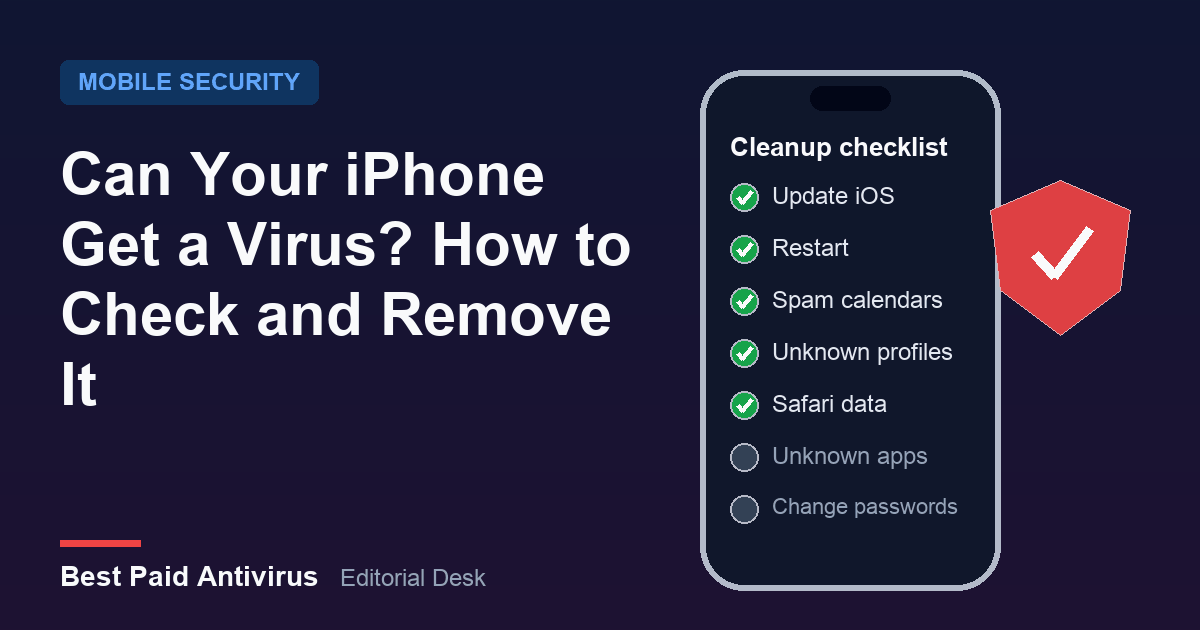
Most iPhone "viruses" are not viruses at all. They are Safari pop-ups, spam calendar subscriptions, a rogue configuration profile or a sketchy app, and you can remove every one of them in a few minutes without buying anything. Real iPhone malware does exist, but it almost always works by attacking an out-of-date version of iOS, which is why the first and most important fix is the same in every case: update iOS, restart, then clean out the places where junk hides. This guide walks through each step in the order we would do it, and tells you when it is time to erase the phone.
Why this question is back in the news
On October 21, 2026, researchers at Report URI and the mobile security company iVerify published joint research on an operation they named DeadTag. The attackers buy up expired domains that once hosted analytics and advertising tags. Thousands of websites still load those old tags, so the attackers' code suddenly runs on pages that look completely normal. The researchers counted more than 660 hijacked domains embedded on thousands of sites, with an estimated 135 million visits a month. Most visitors were simply redirected to scams, but some iPhone visitors were sent to two exploit kits, Coruna and DarkSword. Forbes, reporting on the same research on October 22, said 248 sites with about 8 million monthly visits were serving iPhone spyware directly.
The part that matters for you is the version range. According to Report URI, Coruna targets iOS 13 to 17.2.1 and DarkSword targets iOS 18.4 to 18.7. On a vulnerable phone, just opening the page is enough: there is nothing to tap and no warning. The spyware is built to steal passwords from the keychain and to raid crypto wallet apps. Apple's current releases are iOS 27.0.1 and, for people who stay on the previous version, iOS 26.7.1, both released on September 28, 2026. If your iPhone runs either of those, it is outside the ranges the researchers describe.
Step 1: Check your iOS version and update
Go to Settings, then General, then About, and look at iOS Version. Then go to Settings, General, Software Update and install anything waiting. While you are there, open Automatic Updates and switch on the options to download and install updates, including security responses, so the next fix arrives without you having to remember.
If your iPhone is too old to run a current version, check Apple's security releases page for the newest update available for your model. A phone that no longer gets security updates is the one situation where we would seriously consider replacing the hardware rather than trying to protect it with an app.
Step 2: Restart the phone
Turn the iPhone off and on again. Report URI notes that a reboot may stop an active implant from the exploit kits above, although by the time you restart, data may already have been taken. A restart costs nothing and also clears stuck Safari pages, so do it after updating and again at the end of this checklist.
Step 3: Remove spam calendar events and subscriptions
If your calendar suddenly fills with alerts such as "Your iPhone is infected" or "Claim your prize", you have almost certainly subscribed to a spam calendar by tapping a pop-up. It is annoying, but it cannot infect the phone by itself. Apple's steps for iOS 26 and later:
- In the Calendar app, tap the Calendars button, tap the info button next to the unfamiliar calendar, then tap Delete Calendar or Unsubscribe and confirm.
- For a single unwanted event from an unknown contact, tap the event, then Report Junk, then Delete and Report Junk.
Do not tap any link inside those events. They lead to the same fake warnings and "cleaner app" offers that put them there.
Step 4: Check for configuration profiles and device management
Configuration profiles are meant for work and school networks, but scam sites sometimes trick people into installing one, which can route traffic through a stranger's VPN or change settings. Open Settings, General, VPN and Device Management. On a personal iPhone that nobody manages for you, this section is usually empty or lists only a VPN app you installed yourself.
If you see a profile you do not recognize, tap it and choose Remove Profile. Apple warns that deleting a profile also deletes the settings, apps and data that came with it, so if your employer or school issued the phone, ask their IT team before removing anything.
Step 5: Clean up Safari and website notifications
Persistent pop-ups usually come from website data or notification permissions, not from anything installed on the phone. Go to Settings, Apps, Safari (Settings, Safari on older versions) and tap Clear History and Website Data. Then open Settings, Notifications and look for website names you do not recognize in the list; turn off or remove their notifications. If a page is stuck on a fake alarm, close the tab rather than pressing any button on the page. Our guide to fake virus warning pop-ups covers how to tell a scam alert from a real one.
Step 6: Delete apps you do not recognize
Scroll through your home screens and the App Library. Delete anything you do not remember installing, anything that appeared around the time the problems started, and any "phone cleaner" or "virus scanner" that a pop-up pushed you toward. Then check Settings, your name, Subscriptions, and cancel anything you did not knowingly sign up for. Fake security apps often make their money from weekly subscriptions rather than malware.
Step 7: Secure your accounts and passwords
If you think a vulnerable iPhone may have been compromised, assume saved passwords were exposed. From a device you trust, change your Apple Account password, check the list of devices signed in to your account and remove any you do not recognize, and change passwords for email and banking first. The Passwords app on recent iOS versions also shows security recommendations for reused or leaked passwords. If you hold cryptocurrency, the researchers' advice is to move it to a new wallet with a new recovery phrase, because the spyware specifically targets wallet apps.
Step 8: Erase the iPhone as a last resort
If problems continue after all of the above, erase the phone. Go to Settings, General, Transfer or Reset iPhone, then Erase All Content and Settings. Make sure you have a backup and know your Apple Account password first. After the erase, update iOS before doing anything else. If you restore from a backup and the strange behavior returns, erase again and set the phone up as new, reinstalling apps from the App Store and signing back in to your accounts by hand.
Here is a short video walkthrough of checking an iPhone for suspicious apps and settings:
Signs that are probably not malware, and signs worth acting on
A warm phone after a long video call, a battery that drains faster for a day or two after an iOS update, or one odd pop-up in Safari are normal and rarely mean infection. These are worth taking seriously:
- A profile in VPN and Device Management that you never installed.
- Password reset emails or sign-in alerts you did not trigger.
- Missing money in a banking or crypto wallet app.
- A threat notification from Apple by email, iMessage or at the top of your Apple Account page.
Apple sends threat notifications to people it believes have been targeted by mercenary spyware. If you receive one, follow Apple's guidance on threat notifications; a real one will never ask you to click a link, install a profile or share your password.
Should you turn on Lockdown Mode?
Lockdown Mode (Settings, Privacy and Security, Lockdown Mode) blocks certain complex web technologies and most message attachment types, which narrows the kind of browser attack described above. Apple describes it as extreme protection for the very few people who might be personally targeted, and it does make websites and Messages work differently. Report URI suggests it for people who might be targets, such as anyone holding a significant amount of crypto on the phone. For most people, staying on the latest iOS version gives the protection that matters.
Do you need an antivirus app on an iPhone?
Not for removal. iPhone apps run in their own sandbox, so a security app cannot scan or delete other apps the way antivirus does on Windows or Android. Every step in this guide uses settings that are already on your phone. Paid iPhone security apps earn their place in other ways: web protection that blocks known scam and malicious sites, scam text filtering, identity and dark-web monitoring, and a VPN. If those extras are worth it to you, compare the options in our best antivirus for iPhone guide. Never install a "virus cleaner" because a pop-up told you to. If you also look after an Android phone or a PC, see how to remove a virus from Android and our pick of the best malware removal tools.
The bottom line
Update iOS, restart, unsubscribe from spam calendars, remove unknown profiles, clear Safari data and delete apps you do not trust. That fixes nearly every "iPhone virus". Change your passwords if you were running an old iOS version and something feels wrong, and erase the phone only if the problems survive all of that. The DeadTag research is a reminder that the risk is real, but it is aimed at phones that have not been updated, and updating is free.
Sources
- Report URI: DeadTag, how forgotten website tags became a delivery network for iPhone spyware (October 2026)
- iVerify: Dead domains, live exploits, how infected ads and expired analytics tags deliver Coruna and DarkSword to iPhones (October 21, 2026)
- Forbes: Hackers are serving malware to iPhones via hundreds of infected websites (October 22, 2026)
- Apple: Apple security releases (read October 26, 2026)
- Apple: How to delete calendars and remove events on your iPhone
- Apple: Install or remove configuration profiles on iPhone
- Apple: Clear your cache and cookies on iPhone
- Apple: About Lockdown Mode
- Apple: About Apple threat notifications and protecting against mercenary spyware
- Apple: Recognize and avoid social engineering schemes
Frequently Asked Questions
Can an iPhone actually get a virus?
Classic self-copying viruses are very rare on iPhone because apps run in a sandbox, but iPhones can be hit by spyware that exploits an out-of-date version of iOS, and by malicious profiles, scam apps and spam calendars. Keeping iOS updated is the main defense.
How do I check my iPhone for a virus?
Check that iOS is up to date in Settings, General, Software Update. Then look for unknown calendars in the Calendar app, unknown profiles in Settings, General, VPN and Device Management, apps you did not install, and subscriptions you did not sign up for.
Does resetting an iPhone remove viruses?
Erasing all content and settings removes apps, profiles and data from the phone, so it clears almost any problem that survives the other steps. Update iOS right after the erase. If the problem comes back after restoring a backup, erase again and set the phone up as new.
Is the iPhone virus warning in Safari real?
No. Websites cannot scan your iPhone, so a Safari page claiming your phone is infected is a scam. Close the tab, do not call any number or install the app it suggests, and clear Safari history and website data if it keeps coming back.